Building UI
Now that we have system and game information, it’s time to parse them and present to the user.
This is the part where themes will massively diverge. How you present this information to the user is entirely up to you. You can create a UI dropdown list for the user to select a game. Or create a pretty retro console style selection screen. Or spawn a 3D cartridge object the user has to insert in a console. Or you can make a DOOM clone where you shoot the game to launch it. The possibilites are endless!
For this tutorial, we will make a simple UI where games are grouped by system, and the user can view some game metadata before launching it.
Handling empty libraries
Before we begin, we have to ensure we handle an edge case properly; the user might not have any game available. In that instance, RetroHub will never send system/game data.
So, we can have our scene show by default a message for when no games are available, and remove it as soon as system/game data is received.
Add a new Label to the theme, called NoGames. Set it’s layout to fill the entire screen, center the content, and write the warning message, such as “No games available!”

This is enough to warn the user. Ensure this is what appears if you try running the project with the theme helper settings games setting to None.
Creating system views
Let’s start by properly showing each system name. Let’s create a new scene called system_view.tscn, inheriting from VBoxContainer:


Set it’s layout to fill the entire screen as well.

For now we will just show each system full name. Add a label to it called SystemName, set it’s Autowrap property to Word, and leave it empty (the content will be changed in code).

Now add a script to the root SystemView, which will be called system_view.gd. Let’s add a way for easily setting the system name from outside this scene:
extends VBoxContainer

@onready var system_name_label := $SystemName

var system_data : RetroHubSystemData:
        set(value):
                system_data = value

func _ready():
        system_name_label.text = system_data.fullname
Now, we need to instance this object at runtime when each system is received. Go back to Theme.tscn. We may need to instance a lot of scene views and we want them to be presented neatly. For that we’re gonna create a VBoxContainer to add them vertically, and a ScrollContainer to create scroll bars if the content doesn’t fit on screen.
Start with the ScrollContainer, and give it a good amount of vertical size, while only occupying horizontaly about 30% of the screen, to leave space for game metadata later on.

Then add a VBoxContainer to it. Rename it to SystemViewContainer so it can be accessed in the script. Lastly, set it’s size flags to expand so it occupies all the space the scroll container provides.

Now, edit the script under the Theme root node. Add references to the nodes we need: the NoGames label so we can remove it when there’s content, and the SystemViewContainer to add SystemView instances to it:
extends Node

@onready var no_games_label := $NoGames
@onready var system_view_container := $ScrollContainer/SystemViewContainer

# _ready function, called everytime the theme is loaded, and only once
func _ready():
        # App related signals
        RetroHub.app_initializing.connect(_on_app_initializing)
        ...
Then move to the existing _on_system_receive_start function. This function is called right before RetroHub starts sending all system data, so it’s the perfect place to remove our NoGames label:
## Called when RetroHub is about to send all system data.
func _on_system_receive_start():
        no_games_label.queue_free()
Now, let’s start creating our SystemView instances. Edit the _on_system_received function right below:
## Called when RetroHub has information of a game system available.
## It's entirely up to you how to display that system information.
## RetroHub only sends information from systems with detected games.
##
## System information always arrives before game information.
func _on_system_received(data: RetroHubSystemData):
        var system_view = preload("res://system_view.tscn").instance()
        system_view.system_data = data
        system_view_container.add_child(system_view)
Go ahead and run your project. You’ll now see a list of system “pretty names”. The warning label about an empty library is gone as well.

Creating game entries
We have a scene that handles system information. So, we can have it also handle any game data from that system. Let’s make it so that each game data shows up as a button under each system name.
Create a new scene called game_entry.tscn, this time inheriting from a Button.
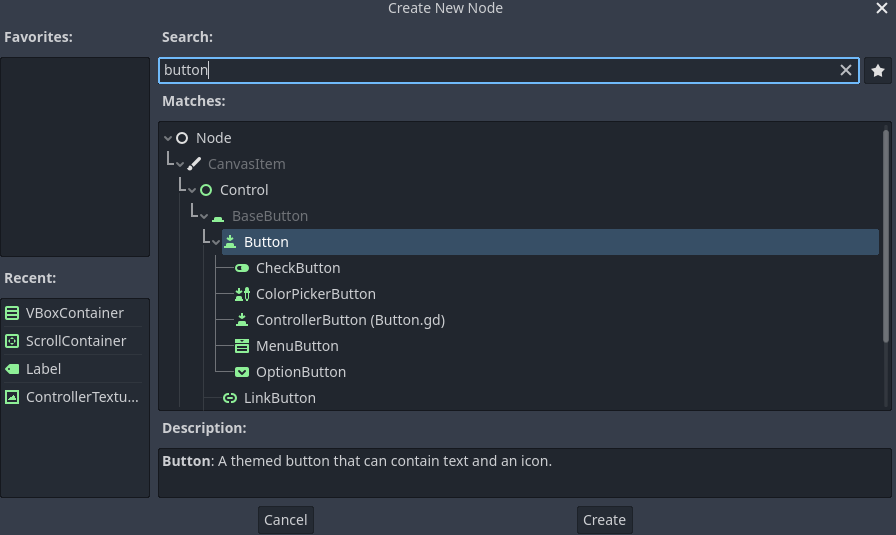
Add a script to it, which will be called game_entry.gd. The process is similar to what we did in the system view; we receive data, and set the label to some information:
extends Button

var game_data : RetroHubGameData:
        set(value):
                game_data = value

func _ready():
                text = game_data.name
Let’s prepare the SystemView scene to properly handle GameEntry instances. Add a HFlowContainer after the SystemName label, and rename it to GameEntryContainer. This container looks better when rearranging children with different sizes, which happens as games have titles with different lengths.

Now, instead of instancing game entries from the Theme.tscn like we did for system views, we’ll do a trick so our code is more organized. RetroHub works by connecting to signals, and the main Logic.gd script connects to all of them; but that doesn’t mean we can’t connect from other places! So, let’s connect to the game_received signal in our SceneView.gd instead, and instance the game entries there:
extends VBoxContainer

@onready var system_name_label := $SystemName
@onready var game_entry_container := $GameEntryContainer

var system_data : RetroHubSystemData:
        set(value):
                system_data = value

func _ready():
        system_name_label.text = system_data.fullname
        RetroHub.game_received.connect(_on_game_received)

func _on_game_received(game_data: RetroHubGameData):
        if game_data.system == system_data:
                var game_entry = preload("res://game_entry.tscn").instantiate()
                game_entry.game_data = game_data
                game_entry_container.add_child(game_entry)
Every game data keeps a reference of the system it comes from, so you can use this to check whether this game data belongs to the current system view.
If you now run the project, you’ll now see buttons below each system name, with each game title. Try increasing the amount of games received to 5 or more, and see how the buttons get rearranged!

We are very close to having a theme that can launch games already! We could do it right now with the right API call, but let’s wait until next section to create the metadata viewer, so we have a proper UI element for launching games.
Warning
Don’t forget that the base code connects to the game_received signal from Logic.gd and prints each game name for debugging purposes. As we now have a proper way to handle game data, you can now remove that connection to stop getting all that output data to the console.